基于ElementPlus封装的季度选择器组件
最近找到一个VUE的文档,它将VUE的各个知识点进行了总结,整理成了《Vue 开发必须知道的36个技巧》。内容比较详实,对各个知识点的讲解也十分到位。
在工作中我们常会用 ElementPlus 作为项目的基础 UI 组件,这里面丰富的组件基本能覆盖到大多数场景。在 ElementPlus 文档中我们可以知道 Form 表单组件中 DatePicker 日期选择器可以通过 type 传入不同的单位来选择不同日期单位的日期时间选择器组件。 type= week | month | year | dates 但是如果要支持根据季度单位来选择,那该怎么办? 今天就来介绍下如何基于 ElementPlus 封装一个季度选择器组件
封装组件思路
通过查看 DatePicker 组件源码可以了解到它是基于 el-tooltip 组件开发的,我们这里可以考虑使用 el-popover(底层也是 el-tooltip 组件)做弹出框,弹出内容自定义为季度选择,触发部分采用 el-input。点击 el-input 触发自定义弹出框。因此组件基础框架已经很明显了
<ElPopover ref="quarterPopover" :visible="pickerVisible" trigger="click"><template #reference><ElInputclass="el-date-editor":prefix-icon="Calendar"v-model="displayValue"@click="pickerVisible = true"></ElInput></template><div class="el-date-picker"><div class="el-date-picker__header"></div><div class="el-picker-panel__content"></div></div>
</ElPopover>
剩下的就是完善弹出框内容和交互,具体细节可查看源码及源码中注释
源码展示
<template><ElPopoverref="quarterPopover":visible="pickerVisible"trigger="click"popper-class="quarter-popover el-date-picker"transition="el-zoom-in-top":width="width"><template #reference><ElInputclass="el-date-editor":prefix-icon="Calendar":clearable="clearable"v-model="displayValue":placeholder="placeholder"@click="pickerVisible = true"@clear="clearModelValue"></ElInput></template><div v-click-outside="closePopover" class="el-date-picker"><div class="el-date-picker__header el-date-picker__header--bordered"><span role="button" class="el-date-picker__prev-btn"><buttontype="button"aria-label="前一年"class="el-picker-panel__icon-btn"@click="getPrevYear"><ElIcon><DArrowLeft /></ElIcon></button></span><span role="button" class="el-date-picker__header-label">{{ year }}年</span><span role="button" class="el-date-picker__next-btn"><buttontype="button"aria-label="后一年"class="el-picker-panel__icon-btn"@click="getNextYear"><ElIcon><DArrowRight /></ElIcon></button></span></div><div class="el-picker-panel__content" style="margin: 10px 15px"><table class="quarter-table" @click="handleTableClick"><tbody><tr><td class="available" :class="getCellStyle(0)"><a class="cell">第一季度</a></td><td class="available" :class="getCellStyle(1)"><a class="cell">第二季度</a></td></tr><tr><td class="available" :class="getCellStyle(2)"><a class="cell">第三季度</a></td><td class="available" :class="getCellStyle(3)"><a class="cell">第四季度</a></td></tr></tbody></table></div></div></ElPopover>
</template>

<script lang="ts" setup>
import {ElPopover,ElInput,ElIcon,dayjs,ClickOutside as vClickOutside,
} from "element-plus";
import { Calendar, DArrowLeft, DArrowRight } from "@element-plus/icons-vue";
import { computed, ref, watch } from "vue";
import { hasClass } from "element-plus/es/utils/dom/style";

const getDayCountOfMonth = function (year: number, month: number) {if (isNaN(+month)) return 31;return new Date(year, +month + 1, 0).getDate();
};
const modifyDate = function (date: Date, y: number, m: number, d: number) {return new Date(y,m,d,date.getHours(),date.getMinutes(),date.getSeconds(),date.getMilliseconds());
};
const changeYearMonthAndClampDate = function (date: Date,year: number,month: number
) {const monthDate = Math.min(date.getDate(), getDayCountOfMonth(year, month));return modifyDate(date, year, month, monthDate);
};

const formatDate = function (date: Date, format: string) {if (!date) return "";return dayjs(date).format(format);
};

const range = function (n: number) {return Array.from({ length: n }).map((_, n: number) => n);
};

const nextDate = function (date: Date, amount = 1) {return new Date(date.getFullYear(), date.getMonth(), date.getDate() + amount);
};
const prevYear = function (date: Date, amount = 1) {const year = date.getFullYear();const month = date.getMonth();return changeYearMonthAndClampDate(date, year - amount, month);
};
const nextYear = function (date: Date, amount = 1) {const year = date.getFullYear();const month = date.getMonth();return changeYearMonthAndClampDate(date, year + amount, month);
};

const props = withDefaults(defineProps<{format: string;modelValue: string;disabled?: boolean;valueFormat?: string;width?: string;clearable?: boolean;placeholder?: string;disabledDate: (val: Date) => boolean;}>(),{/** * 季度弹出框宽度 */width: "324px",/** * 显示在输入框中的格式,引入季度:Q(阿拉伯数字)、q(中文数字) */format: "",modelValue: "",/** * 输出值的格式 这里采用dayjs来格式化 */valueFormat: "",/** * 是否可清除 */clearable: true,placeholder: "请选择季度",/** * 禁用日期 */disabledDate: (val: Date) => false,}
);

const pickerVisible = ref(false);
const date = ref();
const year = computed(() => date.value.getFullYear());
const quarter = ref();
const quarterText = ["一", "二", "三", "四"];
// 局部指令
const closePopover = () => {pickerVisible.value = false;
};
const parsedValue = computed(() => {if (!props.modelValue) {return new Date();}// 非时间格式且未设置valueFormat,再尝试转换时间return new Date(props.modelValue);
});

const displayValue = computed({get: () => {if (!props.modelValue) return null;// 季度,从0开始const quarter = ~~(parsedValue.value.getMonth() / 3);let fDate = formatDate(parsedValue.value, props.format);fDate = fDate.replace(/Q/, quarter + 1 + "").replace(/q/, quarterText[quarter]);return fDate;},set: () => {},
});

watch(() => props.modelValue,(val) => {date.value = val ? parsedValue.value : new Date();},{immediate: true,}
);

const clearModelValue = () => {emit("update:modelValue", "");
};

const emit = defineEmits(["update:modelValue"]);
const handleTableClick = (event: MouseEvent) => {let target = event.target as HTMLElement;if (target.tagName === "A") {target = target.parentNode as HTMLTableCellElement;}if (target.tagName !== "TD") return;if (hasClass(target, "disabled")) return;const column = (target as HTMLTableCellElement).cellIndex;const row = (target.parentNode as HTMLTableRowElement).rowIndex;// 季度,从0开始const currentQuarter = row * 2 + column;// 季度开始月份,从0开始const month = currentQuarter * 3;let newDate: Date | string = new Date(year.value, month, 1);if (props.valueFormat) {newDate = formatDate(newDate, props.valueFormat);}quarter.value = currentQuarter + 1;emit("update:modelValue", newDate.toString());pickerVisible.value = false;
};

const getPrevYear = () => {date.value = prevYear(date.value);
};
const getNextYear = () => {date.value = nextYear(date.value);
};

/**
 * 获取指定年份和季度总天数
 * @param year
 * @param quarter
 */
const getDayCountOfQuarter = (year: number, quarter: number) => {switch (quarter) {case 0: // 第一季度包含二月,需要对是否闰年进行判断处理if ((year % 4 === 0 && year % 100 !== 0) || year % 400 === 0) {return 91;} else {return 90;}case 1:return 91;default:return 92;}
};
/**
 * 获取指定年份和季度的所有日期
 * @param year
 * @param quarter
 */
const datesInYearAndQuarter = (year: number, quarter: number) => {const numOfDays = getDayCountOfQuarter(year, quarter);const firstDay = new Date(year, quarter * 3, 1);return range(numOfDays).map((n: number) => nextDate(firstDay, n));
};

const getCellStyle = (quarter: number) => {const today = new Date();const date = parsedValue.value;return {disabled:typeof props.disabledDate === "function"? datesInYearAndQuarter(year.value, quarter).every(props.disabledDate): false,// 当前选中的季度样式current:date.getFullYear() === year.value && ~~(date.getMonth() / 3) === quarter,// 今日所在季度样式quarter:today.getFullYear() === year.value &&~~(today.getMonth() / 3) === quarter,};
};

defineExpose({year,quarter,
});
</script>

<style>
.quarter-popover {padding: 0 !important;
}
.quarter-table {border-collapse: collapse;width: 100%;margin: -1px;font-size: 12px;
}
.quarter-table td {padding: 20px 3px;text-align: center;cursor: pointer;
}
.quarter-table td .cell {display: block;height: 32px;margin: 0 auto;color: #606266;line-height: 32px;
}
.quarter-table td .cell:hover {color: #1890ff;
}

.quarter-table td.current:not(.disabled) .cell {color: #409eff;
}

.quarter-table td.quarter .cell {color: #409eff;font-weight: 700;
}

.quarter-table td.disabled .cell {color: #c0c4cc;background-color: #f5f7fa;cursor: not-allowed;
}
</style>
组件文档
| 属性名 | 说明 | 类型 | 可选值 | 默认值 |
|---|---|---|---|---|
| value/v-model | 绑定值 | string | - | - |
| format | 显示在输入框中的格式,引入季度:q(阿拉伯数字)、Q(中文数字) | string | - | - |
| width | 可选,弹出框宽度 | string | - | 324px |
| placeholder | 可选,占位内容 | string | - | 请选择季度 |
| value-format | 可选,绑定值的格式。不指定则绑定值为 Date 对象 | string | - | - |
| disabled-date | 可选,禁用日期 | function | - |
注意
1.这个组件中日期格式化采用的是 dayjs(element-plus 已引入该组件),所以 dayjs 支持的格式都能通过 value-format 传值。 例如 value-format=“YYYY-MM-DD” 此时组件的输出选中值格式为选季度的第一天日期 如 2022 年第三季度,其值为 2022-07-01
2.如果需要获取具体的季度值可通过组件 defineExpose 出来的 quarter 获取到
3.组件中用到 v-click-outside 指令,如果 element-plus 是按需引入则需要引入该自定义指令
如何使用
<template><quarter-pickerref="quarterPickerRef"v-model="quarterValue"format="YYYY年第q季度":disabled-date="disabledQuarter"/>
</template>

<script setup lang="ts">
import { ref } from "vue";
import QuarterPicker from "./components/QuarterPicker.vue";

const quarterValue = ref("");

const disabledQuarter = (val: Date) => {if (val <= new Date()) return false;return true;
};
</script>
效果图
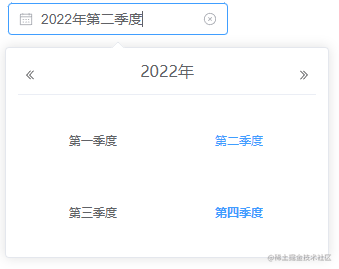
功能点:
1.支持切换年份
2.支持输出选中的季度值
3.效果和 DatePicker 组件大体相似
目前该组件已在实际项目中使用,如有不合适的地方可以很方便的修改组件源码
最后
最近找到一个VUE的文档,它将VUE的各个知识点进行了总结,整理成了《Vue 开发必须知道的36个技巧》。内容比较详实,对各个知识点的讲解也十分到位。


有需要的小伙伴,可以点击下方卡片领取,无偿分享

欢迎加入 MCP 技术社区!与志同道合者携手前行,一同解锁 MCP 技术的无限可能!
更多推荐

 0
0 0
0- 0


 已为社区贡献3条内容

所有评论(0)